How to free up disk space on Windows 10 and 11 — the safe way
A full drive slows everything down and blocks Windows updates. The good news: most machines are carrying gigabytes of cache and temporary files that are perfectly safe to clear — if you know which ones. This guide shows the safe way to reclaim that space.
First, find out what is actually using your disk
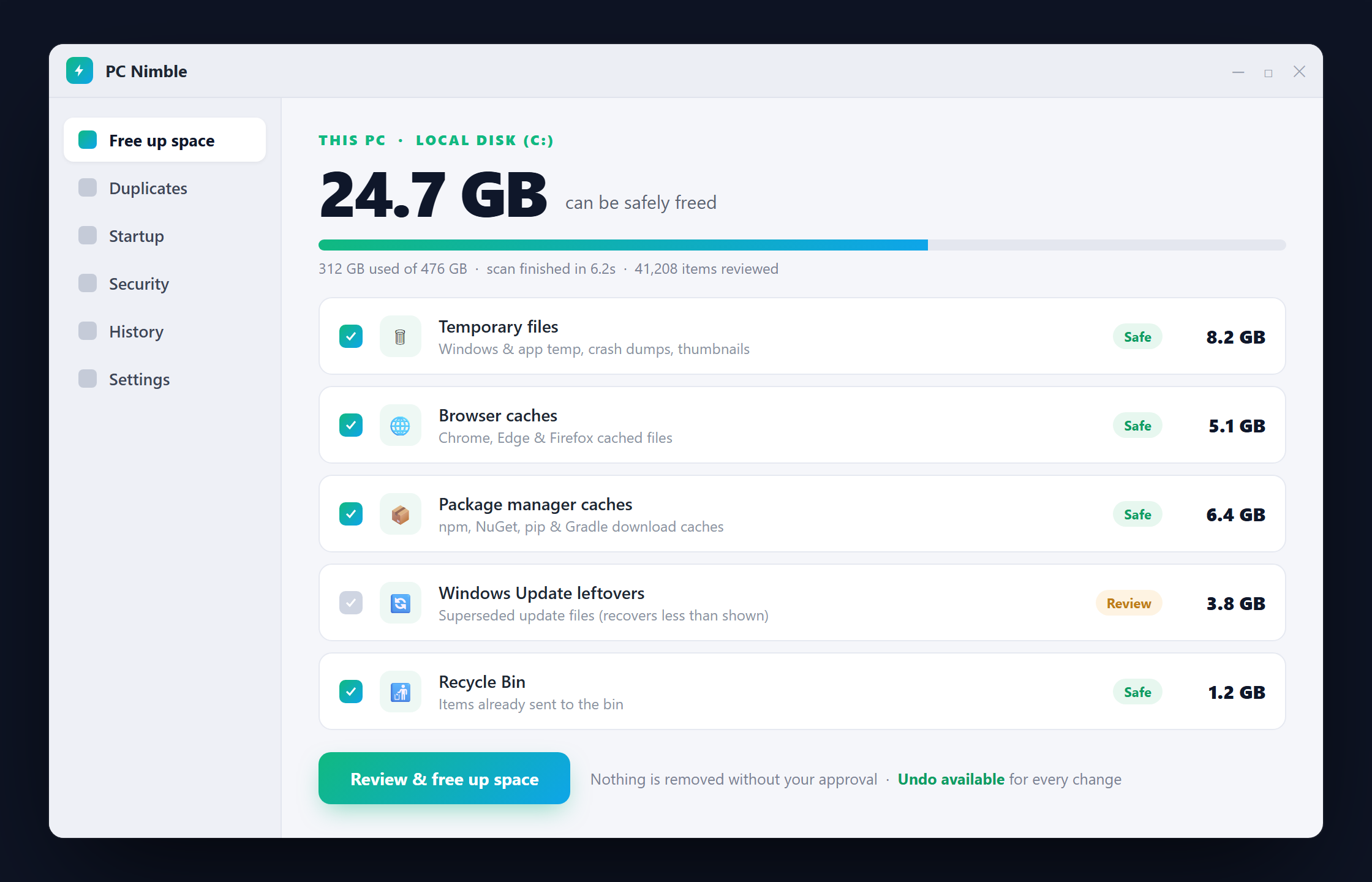
Before deleting anything, you need an honest picture. Windows' own Storage settings give a rough breakdown, but they miss developer caches, browser data and old update files that quietly grow to several gigabytes. A tool that reads the whole drive and groups findings by category — with the real size of each — saves hours of guesswork.
What is safe to clear (and what is not)
- Safe: temporary files, browser caches, package-manager download caches (npm, NuGet, Gradle), and app caches. These regenerate as needed.
- Trade-off: old Windows update files — they can free space, but Windows shares much of that store with files still in use, so the real recovery is smaller than the claimed size.
- Leave alone: anything you cannot recreate — documents, downloads you still need, and the registry (registry "cleaning" has no measurable benefit and is the signature move of adware).
Do it safely — consent and undo matter
The safest cleanup is one where nothing is removed without your explicit approval, one category at a time, and where every change can be undone. Look for a restore point, a quarantine hold, and a written undo log. Avoid any tool with an "Optimize Everything" button, invented "issues found" counters, or countdown timers — those are dark patterns, not features.
The easy way: PC Nimble
PC Nimble is a free Windows disk cleaner built on exactly these rules. It explains what is using your drive in plain language, shows how much each category is really worth, and reclaims space only after you approve each one. There is no account, no telemetry and no payment — and every change is reversible.
You can download PC Nimble free for Windows 10 and 11. If you also want to monitor and manage a team of PCs, it comes included with every WarnDesk plan. Next, read whether PC cleaner apps are safe and what to look for.