Why Is My Windows PC So Slow? The Real Causes (and Safe Fixes)
A slow PC is one of the most common — and most frustrating — computer problems. The internet is full of "optimizers" that promise to fix it in one click, but they rarely help and often make things worse. The truth is that a slow Windows 10 or 11 machine almost always comes down to a short list of real causes. Work through them and you will get most of your speed back, safely.
The real causes of a slow Windows PC
1. A nearly-full disk
This is the big one, and the most overlooked. When your system drive is close to full, Windows has no room for temporary files, virtual memory or updates, and everything crawls. Months of browser caches, package-manager downloads and old update files quietly consume gigabytes. Clearing them is the single highest-impact fix — see how to free up disk space on Windows safely.
2. Too many startup programs
Every app that launches at boot competes for CPU and disk while you are trying to get to work. Disabling the ones you do not need is one of the biggest boot-time wins.
3. Background processes and bloatware
Pre-installed "helper" apps, updaters and trials run constantly in the background. Removing software you do not use frees both disk and memory.
4. Not enough RAM
If you routinely keep many browser tabs and apps open, low memory forces Windows to swap to disk — which is dramatically slower. This is a genuine hardware limit no software can fix.
5. An old or failing drive
A mechanical hard drive (HDD) is the number-one bottleneck on older machines; moving to an SSD transforms them. A failing drive also causes stalls — worth checking its health.
6. Malware or a "PC optimizer"
Ironically, many apps that promise to speed up your PC are the thing slowing it down. Adware and fake optimizers run in the background and nag for payment — see are PC cleaner apps safe.
The safe fix checklist
- Free up disk space — clear temporary files, browser and package caches, and the Recycle Bin.
- Disable unnecessary startup apps.
- Uninstall bloatware and software you do not use.
- Restart regularly (it clears memory and applies updates).
- Keep Windows and drivers updated.
- If it is still slow: add RAM, or move to an SSD.
The easy way to keep it fast
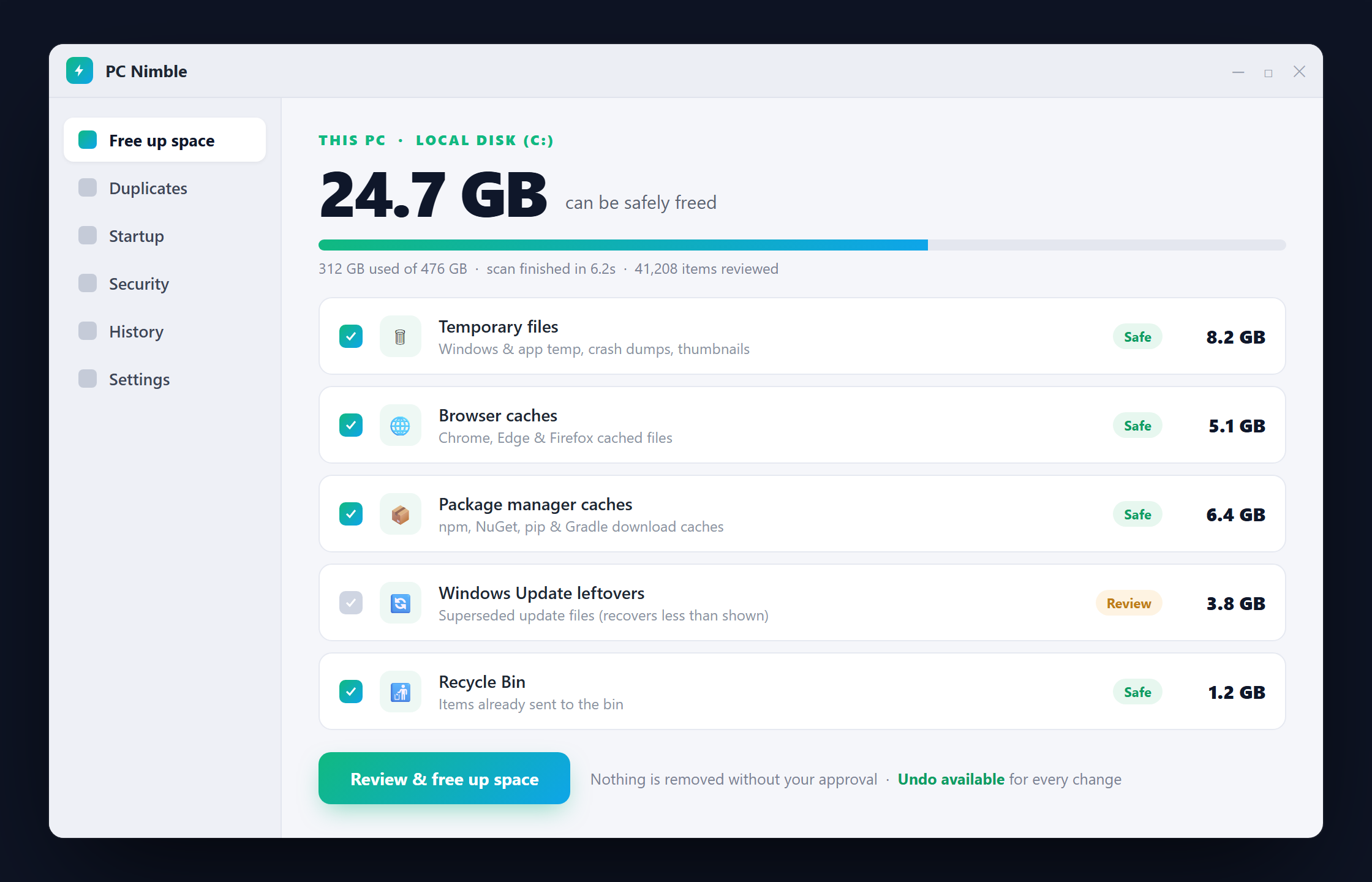
PC Nimble is a free Windows disk cleaner that handles the first and highest-impact cause — a full disk — the safe way. It reads your whole drive, explains what is using it in plain language, and reclaims space only after you approve each category, with every change reversible. There is no account, no telemetry and no payment.
Download PC Nimble free for Windows 10 and 11, and keep your machines fast without the risk of a dubious "optimizer."